How to build TikTok with Flutter?
In part two of our TikTok Flutter tutorial series we'll work on creating the UI for the main screens.

Create Inbox Screen
Create a new file to contain the page/screen.
.├── ...├── pubspec.yaml└── lib/ ├── navigation/ │ └── DrawerNav.dart ├── pages/ │ └── TikTokPage.dart │ └── InboxPage.dart # Create this file └── main.dartDefine a InboxPage screen/widget.
// ./lib/pages/InboxPage.dart import 'package:flutter/material.dart'; class InboxPage extends StatefulWidget { InboxPage({Key? key}) : super(key: key); State<InboxPage> createState() => _InboxPageState();} class _InboxPageState extends State<InboxPage> { Widget build(BuildContext context) { return const Center( child: Text('InboxPage'), ); }}Import InboxPage into DrawerNav and place it in it's corresponding index of _widgetOptions.
1// ./lib/navigation/DrawerNav.dart2 3// Code Omitted4import 'package:fluttok/pages/InboxPage.dart';5 6// Code Omitted7 8class _DrawerNav extends State<DrawerNav> {9 // Code Omitted10 11 static List<Widget> get _widgetOptions => <Widget>[12 const TikTokPage(color: Colors.yellow),13 const TikTokPage(color: Colors.blue),14 const TikTokPage(color: Colors.green),15 InboxPage(),16 const TikTokPage(color: Colors.pink),17 ];18 19 // Code Omitted20}- Line 2: We import the newly created
InboxPagewidget. - Line 13: We place the widget/screen/page as the 3rd index in our
_widgetOptionsso that whenInboxis tapped, this widget is selected.
We should now see a white screen when we tap the Inbox tab in the bottom tab navigator.

Create InboxPage Header/AppBar
Update DrawerNav, adding an appBar parameter with a value of an AppBar widget to the Scaffold we use.
1// ./lib/navigation/DrawerNav.dart2 3// Code Omitted4Scaffold(5 appBar: AppBar(title: const Text("Inbox")),6 body: _widgetOptions.elementAt(_selectedIndex),7 // Code Omitted8);The title parameter of AppBar determines the header/app bar text.

To display an icon in the top right, add actions as an additional parameter to AppBar. The value of actions is an array because we can have one or more icons/actions
1// ./lib/navigation/DrawerNav.dart2 3// Code Omitted4Scaffold(5 appBar: AppBar(6 title: const Text("Inbox"),7 actions: <Widget>[8 IconButton(icon: Icon(Icons.message), onPressed: () {}),9 ],10 ),11 // Code Omitted12)
InboxPage now has a header/app bar with an action button in the top right.

Note: We have a problem where the same AppBar is shown on all screens.
Create Horizontal Scroll of Friends with recent posts
Add faker library useful for generating smart dummy data.
flutter pub add fakerImport faker into InboxPage and create a faker instance used to generate names.
1// ./lib/pages/InboxPage.dart2 3import 'package:faker/faker.dart';4 5final faker = Faker();Refactor InboxPage to add a horizontally scrolling list of avatars using a ListView.
1// ./lib/pages/InboxPage.dart2 3class _InboxPageState extends State<InboxPage> {4 5 Widget build(BuildContext context) {6 return Column(7 children: [8 SizedBox(9 height: 100,10 child: ListView.builder(11 itemCount: 10,12 scrollDirection: Axis.horizontal,13 itemBuilder: (ctx, i) {14 return Padding(15 padding: const EdgeInsets.all(5),16 child: Column(17 children: [18 CircleAvatar(19 radius: 30,20 backgroundImage:21 NetworkImage('https://i.pravatar.cc/150?img=$i'),22 ),23 Text(24 faker.person.firstName(),25 style:26 const TextStyle(color: Colors.black87, fontSize: 10),27 ),28 ],29 ),30 );31 },32 ),33 ),34 ],35 );36 }37}- Line 6: We add everything inside of a Column
- Line 12: We define the ListView
scrollDirectionas horizontal. - Line 13: We pass the
itemBuilderparameter a function which returns a widget for each instance within our scroll. In other words this function is used to create each item in the horizontally scrolling list of friends with recent stories.

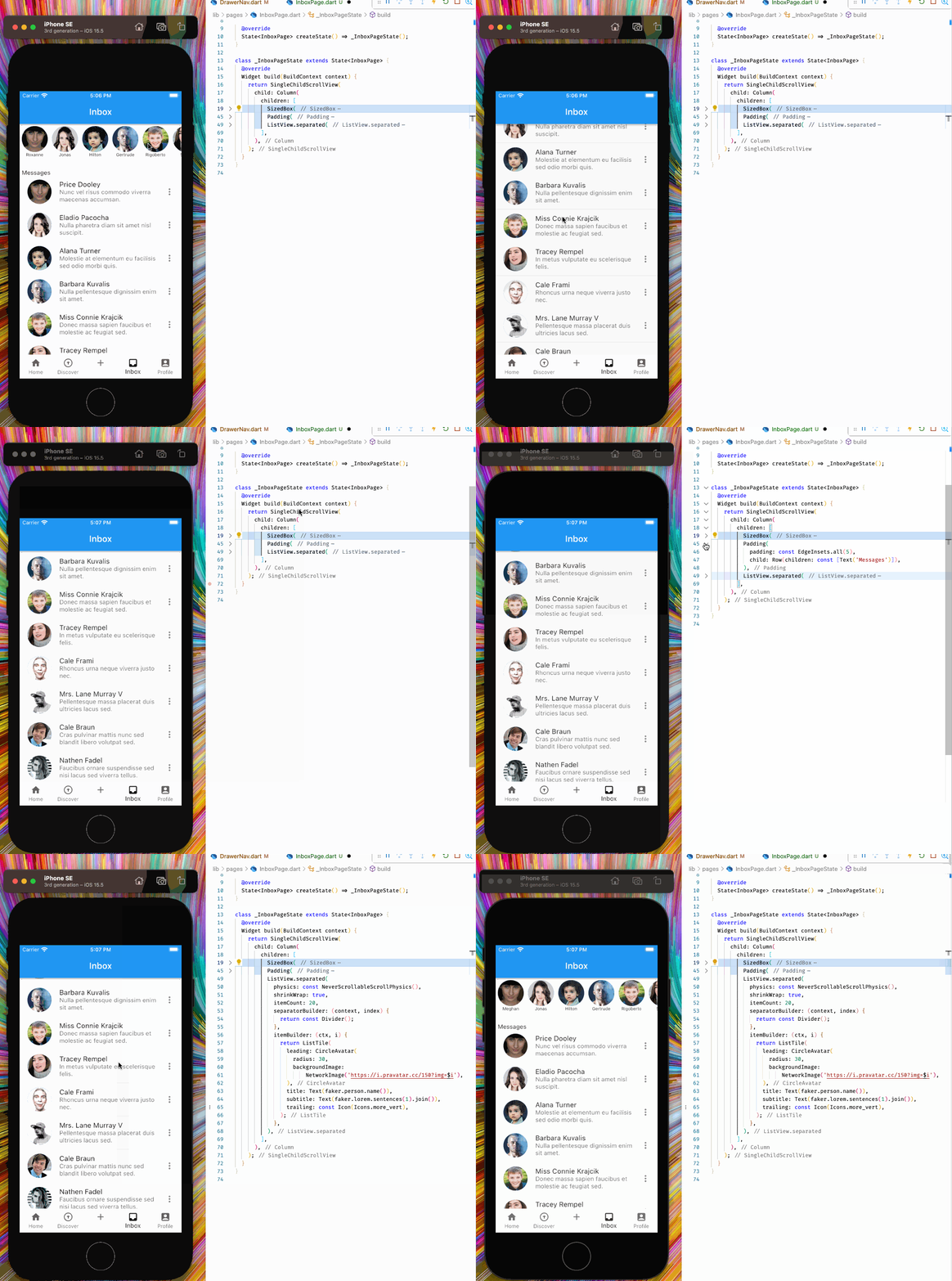
We should be able to see a horizontally scrollable list of avatars now.
Create Vertical Scroll of Message History
Use another ListView to create the vertically scrolling list of messages.
1class _InboxPageState extends State<InboxPage> {2 3 Widget build(BuildContext context) {4 return Column(5 children: [6 SizedBox(7 // Code Omitted8 ),9 Padding(10 padding: const EdgeInsets.all(5),11 child: Row(children: const [Text('Messages')]),12 ),13 ListView.separated(14 physics: const NeverScrollableScrollPhysics(),15 shrinkWrap: true,16 itemCount: 10,17 separatorBuilder: (context, index) {18 return const Divider();19 },20 itemBuilder: (ctx, i) {21 return ListTile(22 leading: CircleAvatar(23 radius: 30,24 backgroundImage:25 NetworkImage('https://i.pravatar.cc/150?img=$i'),26 ),27 title: Text(faker.person.name()),28 subtitle: Text(faker.lorem.sentences(1).join()),29 trailing: const Icon(Icons.more_vert),30 );31 },32 ),33 ],34 );35 }36}- We add the code to the end of our
Colwidgetschildrenparameter, anarray. - Line 9-12: We add a
Rowafter the firstListViewfor a titleMessages. - Line 13-32: We add a second
ListView. This time instead of creating the UI ourselves using widgets, we useListTileon line 21.

- Note: We see an overflow bottom warning.
- We cannot scroll vertically.
Fix warning and implement vertical scroll
Wrap Column with a SingleChildScrollView to remove the warning.
1return SingleChildScrollView(2 child: Column(3 children: [4 SizedBox(5 // Code Omitted6 ),7 Padding(8 // Code Omitted9 ),10 ListView.separated(11 // Code Omitted12 ),13 ],14 ),15);- Line 2: Column should be passed to the
childparameter ofSingleChildScrollView.
SingleChildScrollView allowed us to complete InboxPage, excellent.